App Tekenen
Werkboek
THE TEKENEN WERKBOEK APP IS INTENDED AS AN AID TO THE WORKBOOK TEKENEN (MET HET RECHTERBREIN) KUN JE LEREN.
This is what the app does for you.
It helps you keep going with the 100-day challenge
You get a message up to twice if you skip a day. (You can turn this off in your phone settings.)
You get moments of inspiration.
Over the 100 days you collect towards a FREE set of cards featuring the beautiful images by Cornelie Gogelein.
Would you rather practise with my personal guidance? View RB100-Master →
THE SUBSCRIPTION TO TEKENEN WERKBOEK
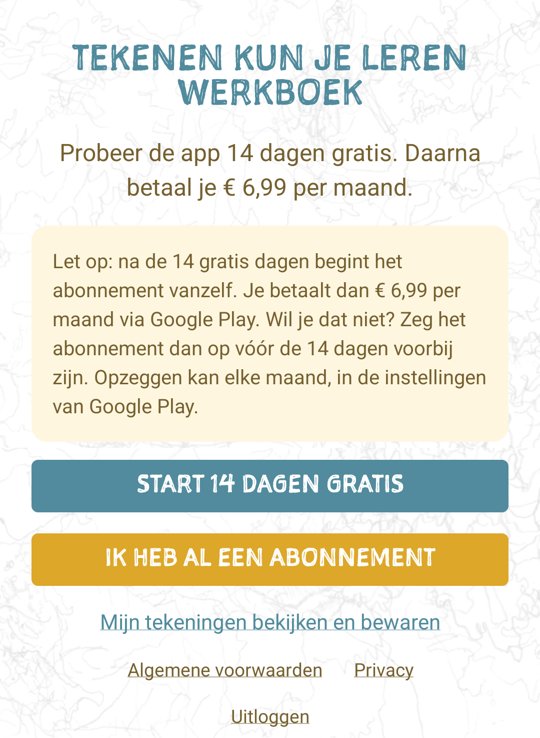
Try it free for 14 days first.
€ 6.99 per month
After the first fourteen days your subscription continues automatically. You pay monthly via the App Store or Google Play. There is no fixed term: you can cancel any month.
Don't want to continue? Cancel before the fourteen free days are up. Then you pay nothing.
How to activate the subscription
- Download Tekenen Werkboek in the App Store (iPhone) or Google Play (Android).
- Create an account with your email address and a password.
- Tap ‘Start 14 days free’.
- Confirm the subscription with your Apple ID or Google account.
- You can start drawing.
Keep your Workbook to hand. You enter a word from the book to open the app.
Download Tekenen Werkboek
For iPhone and Android.
HOW DOES THE TEKENEN WERKBOEK APP WORK?
You can download the Tekenen Werkboek app from the App Store or Google Play. You first try the app free for 14 days. After that you pay € 6.99 per month.
In this accompanying text you can read exactly how to get started with this app and how everything works.
You can download this page as a PDF (use the ‘Download PDF’ button below) and print it out; that way you always have the instructions for the app to hand.
How the app works
Tip! Download the manualImportant: this app has been developed for iPhone and Android mobile phones. On an iPad or Android tablet the app may cause problems.
Your account and the start of your challenge
Download the Tekenen Werkboek app from the App Store or Google Play and create an account with your email address and a password. Activate your subscription via ‘Start 14 days free’. To open the app, you also enter a word from your Workbook.
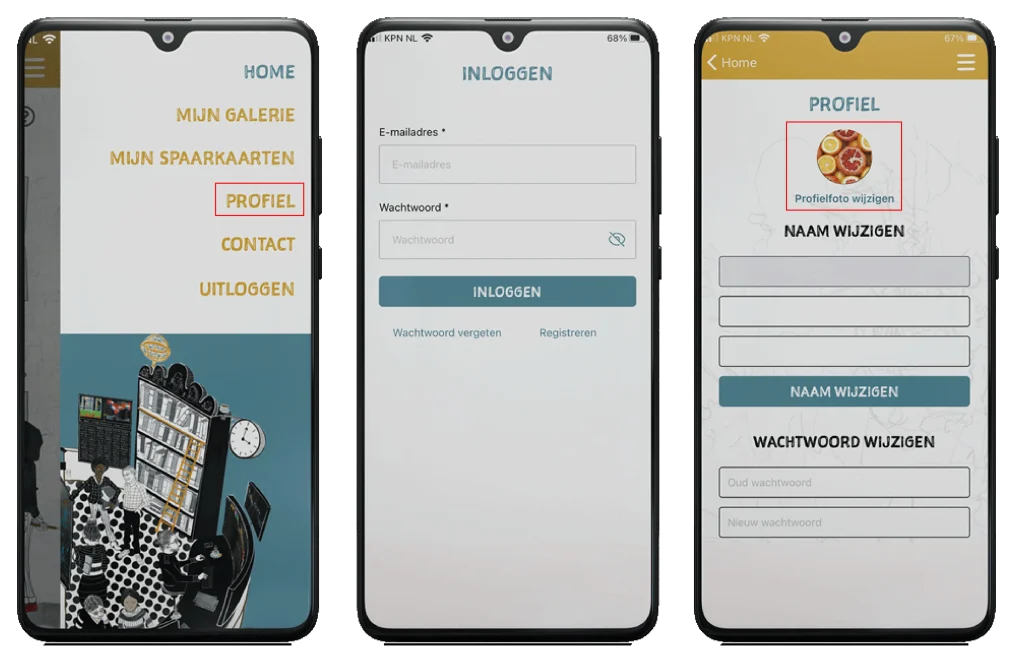
Now you can LOG IN
If you have forgotten your password, you can also request a new one here. In your PROFILE you can also upload a photo of yourself: click on change profile photo and select the photo you want from your phone. It will now appear in the circle.
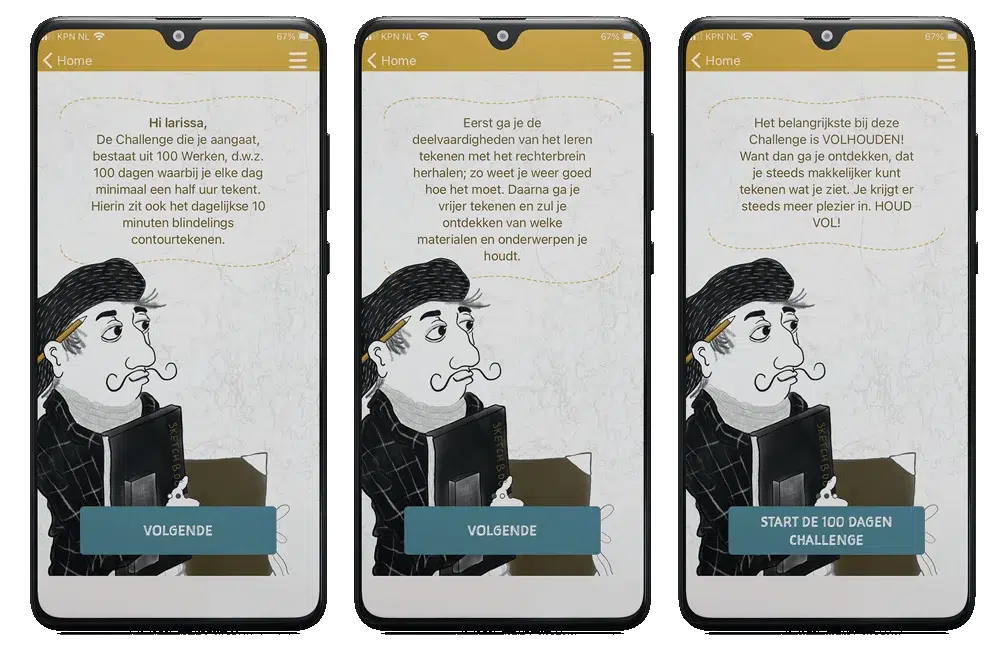
Once you have done this, you get three consecutive screens explaining the Challenge.
By clicking NEXT, you can read the three screens
When you click the START THE 100 DAYS CHALLENGE button, the Workbook's drawing programme starts.
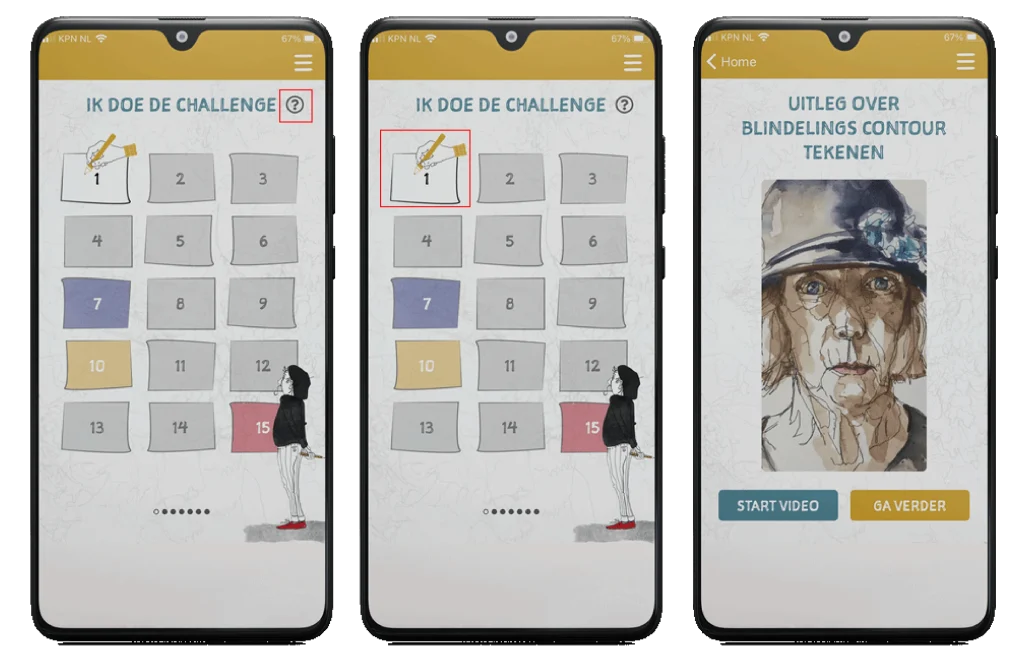
Your overview of one hundred days
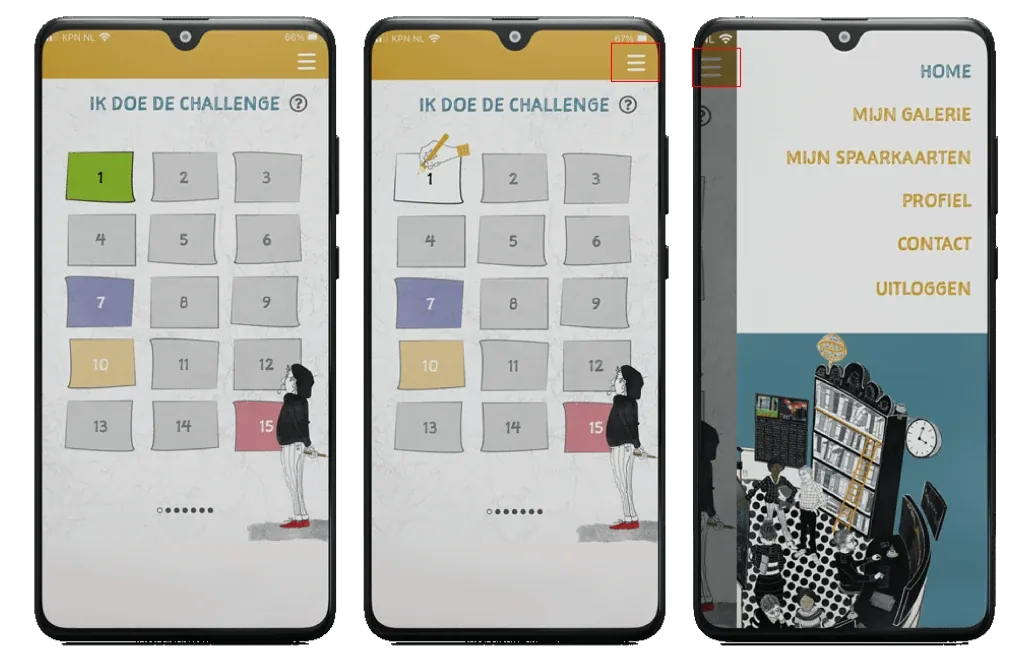
I'M DOING THE CHALLENGE: if you want to know what each square (colours) means, click the ? in the top right corner.
You start the Challenge by clicking the white square with the little hand.
Start with blind contour drawing
You will then first get the EXPLANATION OF BLIND CONTOUR DRAWING:
You watch the video on day 1 of the Challenge and after that every now and then, to remind yourself how to do blind contour drawing. If you don't want to watch the video, click the button CONTINUE
After that you come to THIS IS THE MUSIC FOR BLIND CONTOUR DRAWING. This is the music you also used in the book Tekenen (met het rechterbrein) kun je leren for the blind contour drawing exercise. It is music that has been composed scientifically and brings you into a relaxed state.
When you click the START MUSIC button, the music starts playing and lasts exactly as long as the exercise (10 minutes).
You can also skip the music (for example if you want to play your own music during the exercise): you then click CONTINUE
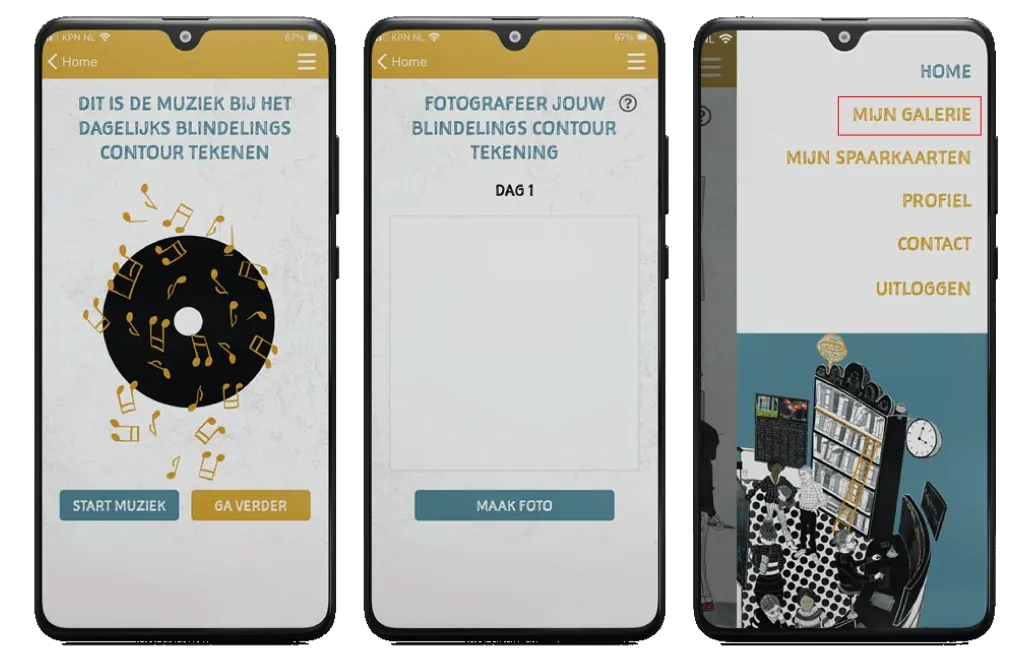
Keep your blind contour drawing
After the music comes the screen PHOTOGRAPH YOUR BLIND CONTOUR DRAWING (here day 1).
In the Workbook programme you do 10 minutes of blind contour drawing every day for 100 days.
You then take a photo of your blind contour drawing by clicking the TAKE A PHOTO button.
After taking the photo, click USE PHOTO* and then you will see the ADD TO GALLERY button. When you click it, your blind contour drawing goes into the GALLERY of blind contour drawings
*if you want to take a new photo, click Retake
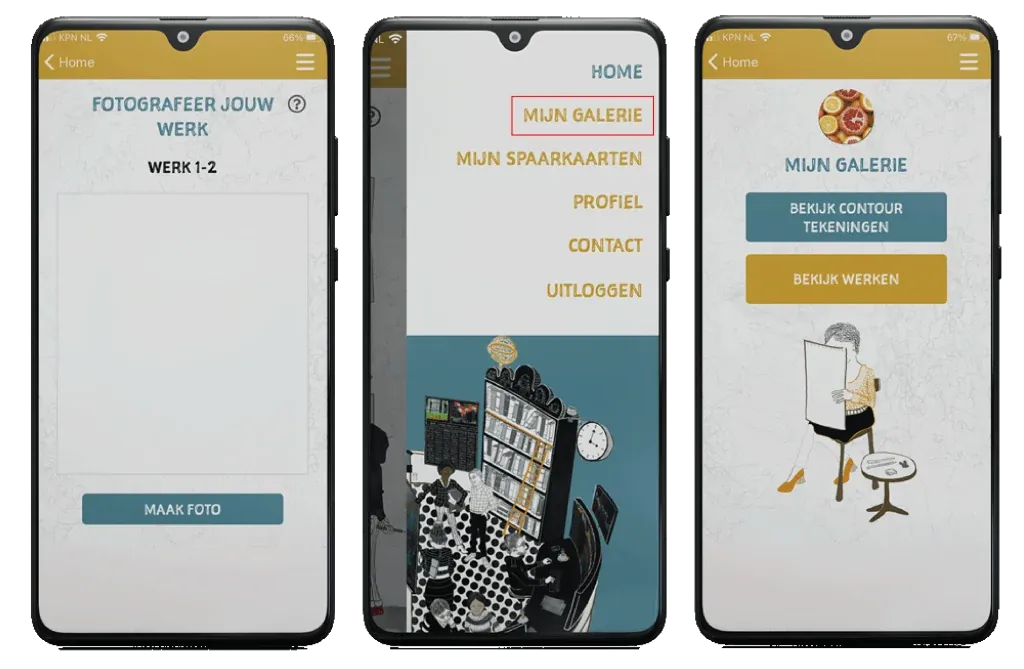
In the Menu you will find the heading MY GALLERY when you click it, you can choose between VIEW MY CONTOUR DRAWINGS and VIEW WORKS.
The 1st shows an overview of your blind contour drawings
The 2nd shows an overview of your Works (drawings)
Getting started with your Workbook
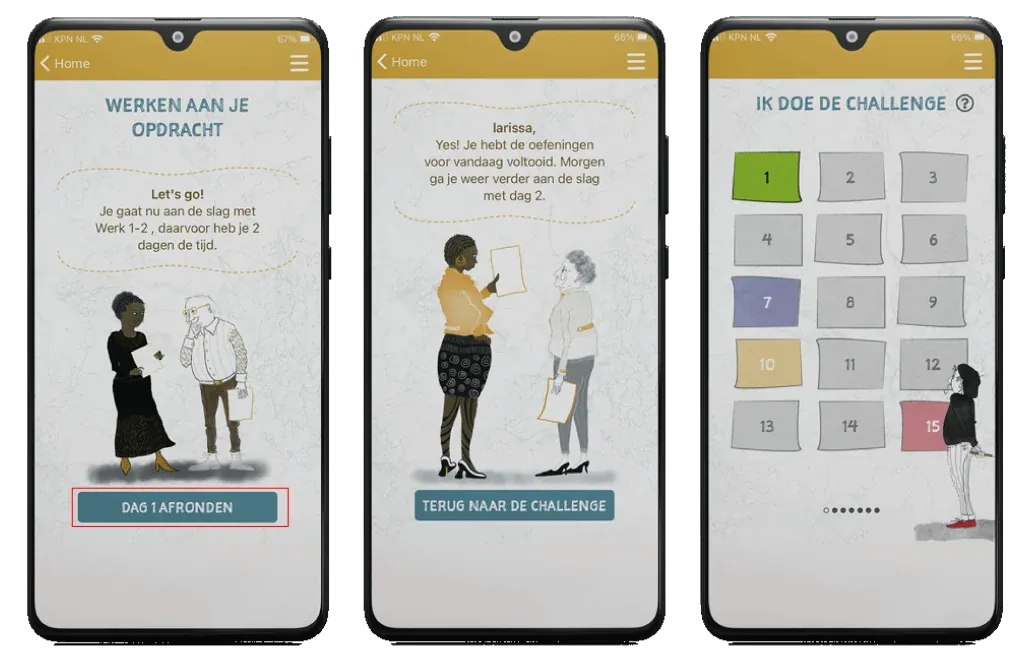
Once you have made your blind contour drawing and put a photo of it in the gallery, you get to work on the Work (here Work 1-2)
In the WORKING ON YOUR ASSIGNMENT screen you can see which Work you are working on and how many days you have (left) to finish this Work.
In the Workbook programme you work on a Work for at least 20 minutes every day. Once you have spent your time on the drawing assignment, click the FINISH DAY (here 1) button.
This means you have now done your Challenge for this day.
Then the screen appears: Yes! You have completed today's exercise. Tomorrow you will carry on with day (here) 2: now you know you have finished the Challenge for this day.
By clicking the BACK TO THE CHALLENGE button you go back to the 100 days overview.
The square for the day you have completed now turns green.
This is also the moment when the square for the day you are about to work on turns white and you see the little hand with the pencil appear.
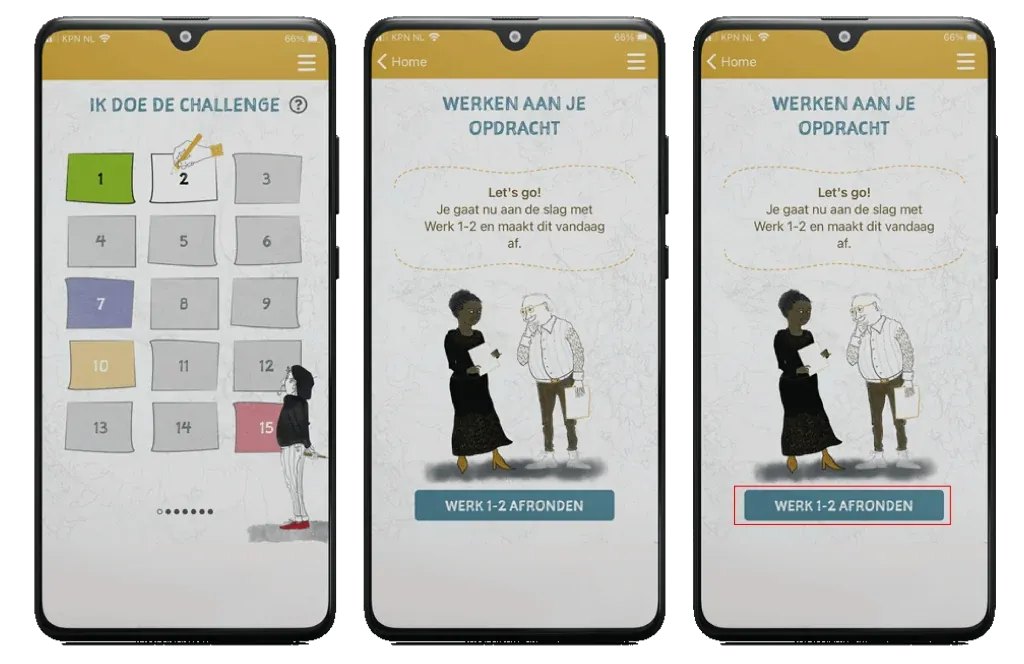
Finishing and keeping your work
On the last day of a particular assignment, the WORKING ON YOUR ASSIGNMENT screen shows the text: ‘Let’s go! You are now going to work on Work (here) 1-2 and finish it today.
When you have finished the Work – the drawing is complete – click FINISH WORK (here) 1-2
You then take a photo of the drawing you have made by clicking the TAKE PHOTO button.
If you want to use the photo, click Use photo. If you want to take a new photo, click Retake.
Once you have photographed your Work, you come back to the PHOTOGRAPH YOUR WORK screen and now you will see the ADD TO GALLERY button at the bottom By clicking it, your drawing goes into the gallery.
In the MENU you can click the heading MY GALLERY and under VIEW MY WORKS you will see an overview of all the drawings you have made from the Workbook
Reminders and surprises
To help you with the Challenge of drawing for at least half an hour every day – including 10 minutes of blind contour drawing – you will get a reminder* on your iPhone after 36 hours if you forget a day. Then once more after 24 hours
*If you do not want to receive these reminders, you can open the Tekenen Werkboek app under Settings on your own phone and indicate there that you do not want to receive notifications.
Every day you complete the Challenge, the square turns green. This means you have ticked off that day. (Day 1 shown here)
The coloured squares hold a surprise
Find everything in the menu
MENU explained
- HOME takes you back to the 100 days Challenge.
- MY GALLERY: here you will find your gallery of blind contour drawings and the gallery of your Works
- MY SAVINGS CARDS: here you can see how far you have got with collecting the set of cards you can earn once you have completed the 100 days Challenge.
- SETTINGS you can change your name and password
PRACTICAL MATTERS
Managing your subscription.
Saving your drawings.
How do I cancel my subscription?
Open the menu in the app (the three lines at the top right) and go to My profile. Scroll to Subscription and tap ‘Manage or cancel subscription’. You will go straight to the right place in the App Store or Google Play.
You can cancel any month. After that, you can still use the app until the end of the month you have paid for.
Can I cancel without opening the app?
On your iPhone: open Settings → tap your name → Subscriptions → Tekenen Werkboek → Cancel Subscription.
On Android: open Google Play → tap your profile picture → Payments & subscriptions → Subscriptions → Tekenen Werkboek → Cancel subscription.
Will my drawings be kept if I cancel?
Yes. Your drawings are not deleted when you cancel. Even without a subscription, you can view them and save them to your phone:
- Open the app and log in.
- Tap ‘View and save my drawings’.
- Tap a drawing to enlarge it.
- Hold your finger on the drawing and choose ‘Save’.
What do I do with a new phone or after reinstalling?
Log in with the same email address and tap ‘I already have a subscription’. The app will look up your subscription. Use the same Apple ID or Google account you used to take out the subscription.
Can I start again from day 1?
Yes. In the menu, go to My profile and tap ‘Start again’.
Please note: your progress and the drawings in the app will then be erased. So save your drawings to your phone first.
A question or a comment?
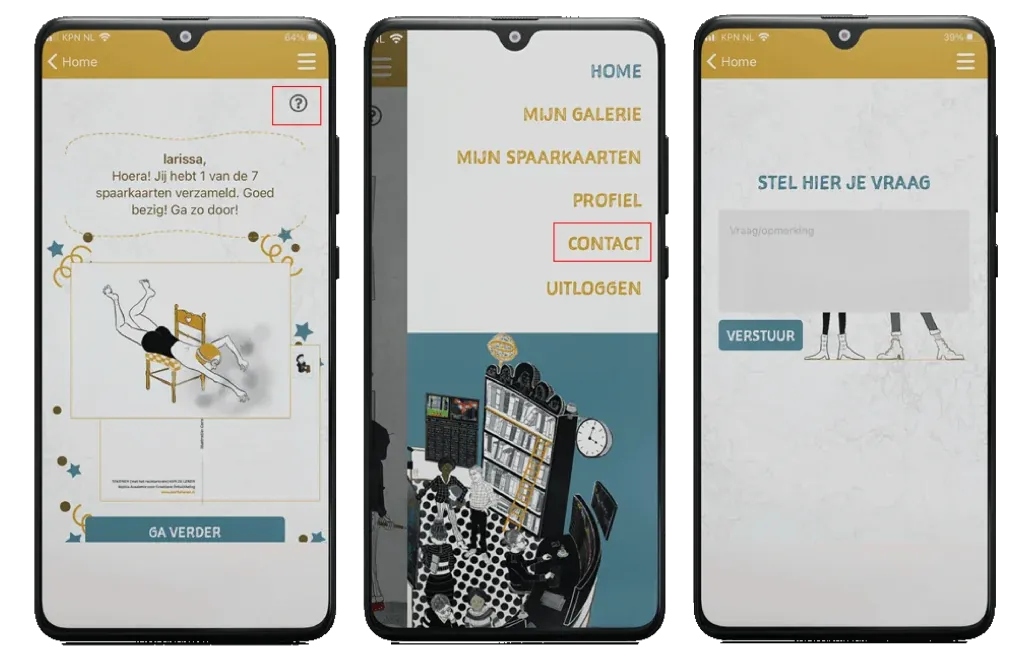
If you click on a ?, you will get extra information about that screen.
Under CONTACT you can ask me a question or (something we would really love) give feedback on the app.
I wish you every success with the 100-day programme of the Challenge.
P.S.
We would really like to create the best possible experience for the users of the app; if you have any comments or suggestions that could help us improve the app, please let us know and send your findings to info@leertekenen.nl

Sophia Academie voor Creatieve Ontwikkeling
www.leertekenen.nl · info@leertekenen.nl
Chamber of Commerce (KvK) 32146051 · VAT NL001323038B63